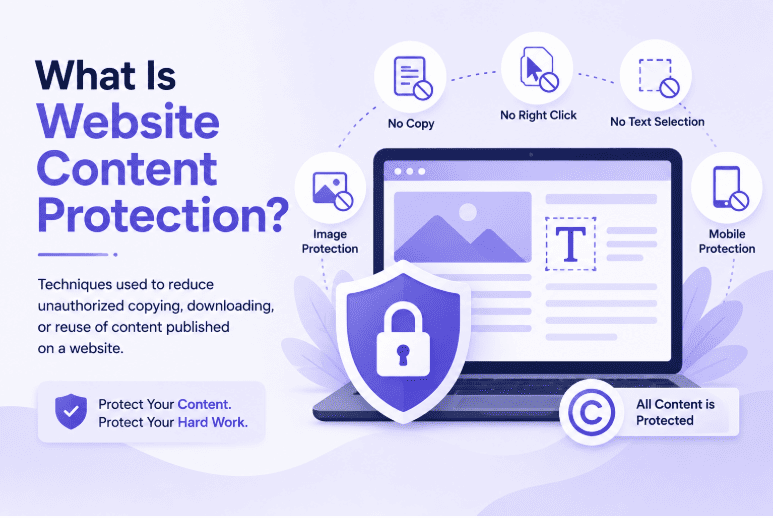
Website content protection refers to techniques used to reduce unauthorized copying, downloading, or reuse of content published on a website.
Your blog posts, product descriptions, images, graphics, tutorials, documentation, and other original materials can represent a significant investment of time and resources. Unfortunately, public web content can also be copied quickly.
Protection methods can include:
- Right-click protection
- Text-selection protection
- Copy, cut, and paste restrictions
- Keyboard shortcut protection
- Image protection
- Mobile touch protection
- Page-level targeting
- User-role exclusions
- Copyright notices
- Content monitoring
No technical method can guarantee that publicly displayed content will never be reproduced, but several layers of protection can significantly reduce casual content theft.
Why Is Website Content Protection Important?
Protect Your Creative Work
Blog posts, tutorials, photography, illustrations, infographics, and videos may require significant time and creativity to produce.
Protect Your Brand
Unique content helps establish your business’s identity and authority online. Unauthorized copying can make your content appear elsewhere without your branding or context.
Protect Your SEO Investment
Creating useful, optimized content requires research, writing, editing, and ongoing updates. Content protection can help discourage straightforward copying of that investment.
Protect Your Website Traffic
Your website content is often created to attract visitors through search engines, social media, and direct referrals. When content is copied and republished elsewhere, it can weaken the uniqueness of your website
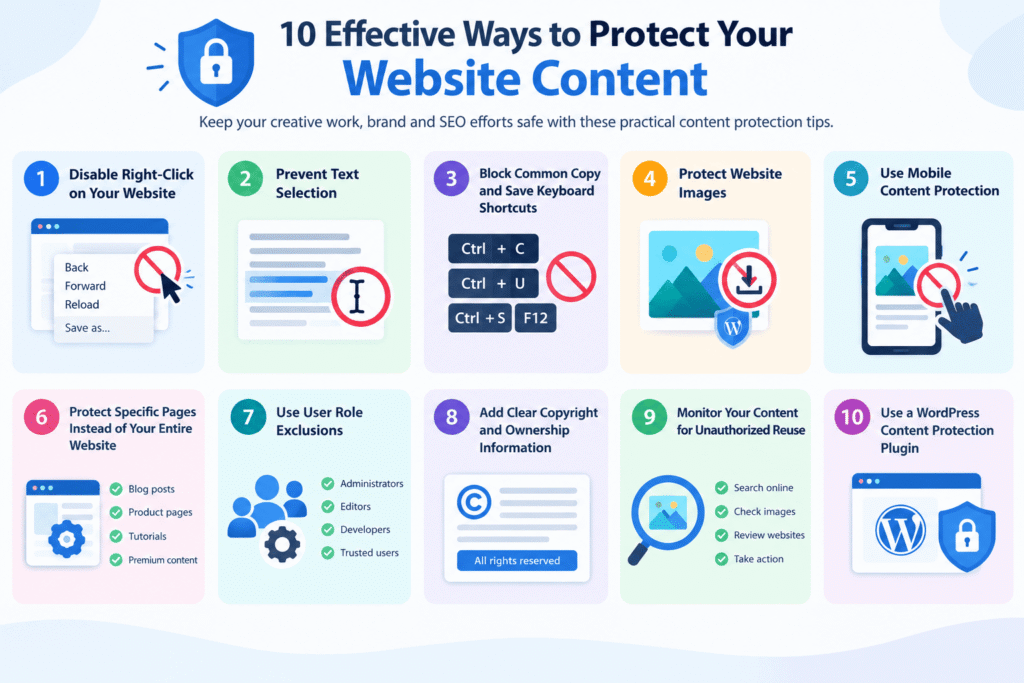
10 Ways to Prevent Website Content Theft
1. Disable Right-Click on Your Website
Right-click is one of the easiest ways for visitors to access browser options for interacting with website content.
Disabling the right-click context menu can discourage basic copying attempts and make it harder for casual users to access common options for saving or interacting with page elements.
However, right-click protection should be considered one layer of protection rather than a complete solution.
2. Prevent Text Selection
When text can be selected normally, copying an article or paragraph can take only a few seconds.
Preventing text selection can make casual copying more difficult for blogs, tutorials, educational resources, product content, and other original material.
This feature should be applied thoughtfully because some websites legitimately require visitors to select and copy information.
3. Block Common Copy and Save Keyboard Shortcuts
Visitors may use keyboard shortcuts instead of the mouse to copy or interact with website content.
Depending on your protection requirements, you may want to restrict shortcuts such as:
- Ctrl+C
- Ctrl+U
- Ctrl+S
- F12
- Other common browser or copy-related shortcuts
These restrictions can add another layer of deterrence against casual content copying.
4. Protect Website Images
Images are another common target for unauthorized reuse.
Photography, illustrations, banners, infographics, product images, and original graphics can be copied or saved from a website.
To reduce casual image theft, website owners can consider:
- Disabling image dragging
- Restricting right-click actions
- Using watermarks where appropriate
- Adding licensing information
- Monitoring for unauthorized image reuse
No method can make a publicly displayed image completely impossible to reproduce, but protection can discourage casual downloading.
5. Use Mobile Content Protection
Content protection should also consider mobile visitors.
Smartphones and tablets use touch interactions instead of a traditional mouse and keyboard. Long-press and touch-based actions can provide alternative ways to interact with website content.
Mobile touch protection can help reduce casual attempts to copy, drag, or save content from mobile devices.
6. Protect Specific Pages Instead of Your Entire Website
Not every page on your website needs the same level of protection.
You may want to protect:
- Blog posts
- Premium resources
- Product information
- Photography
- Tutorials
- Educational content
At the same time, contact pages, documentation, checkout pages, or other interactive sections may need normal browser behavior.
Page-level targeting lets you apply protection where it is actually needed.
7. Use User Role Exclusions
Website administrators, editors, developers, and other trusted users may need unrestricted access while managing website content.
User-role exclusions can allow selected users to work normally even when content protection is enabled for public visitors.
This can be particularly useful for WordPress websites managed by multiple team members.
8. Add Clear Copyright and Ownership Information
Technical protection is only one part of protecting your website content.
Clearly communicate ownership through copyright notices and usage information.
Depending on your website, you may include:
- Copyright statements
- Image licensing information
- Content reuse policies
- Attribution requirements
- Terms of use
These notices do not technically stop copying, but they clearly communicate how your content may be used.
9. Monitor Your Content for Unauthorized Reuse
Protection should not stop at prevention.
Regularly monitoring your content can help you discover unauthorized reuse. You can search for distinctive sentences from your articles, monitor your original images, and review websites using your content without permission.
When unauthorized reuse is significant, website owners can consider contacting the website owner, requesting removal, requesting attribution, or using the relevant platform’s reporting process.
10. Use a WordPress Content Protection Plugin
WordPress users can simplify content protection by using a dedicated plugin rather than manually implementing multiple protection scripts.
A dedicated tool can bring several controls together in one interface and make it easier to apply protection to selected content.
TTM Content Shield
TTM Content Shield by ThemetechMount is a free WordPress plugin designed to help reduce casual content copying. The current product page lists controls for content, keyboard shortcuts, images, mobile interactions, WooCommerce products, targeting, whitelisting, and other protection tools.
Key Features of TTM Content Shield
TTM Content Shield provides multiple protection options for WordPress websites. According to ThemetechMount’s current product page, its main features include
Disable Right-Click
Restricts the browser right-click context menu.
Disable Text Selection
Makes casual selection and copying of website text more difficult.
Copy, Cut & Paste Protection
Helps restrict common copy, cut, and paste actions.
Keyboard Shortcut Protection
Can disable common shortcuts such as Ctrl+C, Ctrl+U, Ctrl+S, and F12.
Frequently Asked Questions
How do I prevent people from copying content from my website?
You can discourage casual copying by disabling right-click, restricting text selection, blocking copy-related shortcuts, protecting images, and using a WordPress content-protection plugin.
Can I completely stop people from stealing website content?
No. Publicly displayed content can never be guaranteed to be completely uncopyable. Technical protection mainly makes casual copying more difficult.
Does disabling right-click protect website content?
It can discourage simple copying attempts, but right-click protection should be combined with other techniques for better coverage.
How can I protect images on my website?
You can use image-drag protection, right-click restrictions, watermarks, licensing information, and monitoring for unauthorized reuse.
Does TTM Content Shield work with WooCommerce?
Yes. The current TTM Content Shield feature list includes WooCommerce product protection.